Pages

Monday, March 4, 2013

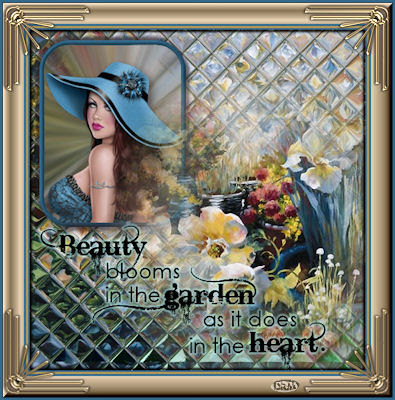
Believe in Elegance

Tutorial by Jcuttlebear01 aka JoAnn
3/4/2013
I do these tutorials for fun and not
for any profit. I use them also as a learning tool to
help others learn the fun and art of paint shop pro.
All things I use are collected, the only thing I claim
Is the tags I make with these as my work.
Feel free to share my tutorials, but link them back
to my site please.
 Remember to save often in case your psp closes.
I did this in PSP 9 but sure you can
do it with other versions.
Plug in
Phoxo its a stand alone and no need
to install it. Just download it and click on the install
icon, and it will put a short cut on your desk top.
All kinds of neat effects in there. The bottom icon is what it
looks like, and the top one is the one you will see on your desktop.
It is a free stand alone plug in

Supplies
Graphic of choice
Font of choice
Word art
Tube
Accents
Open a graphic of choice
The one below is what I'm going to use
 
 
Duplicate>close the original........Save the copy as>and place where you
can find it. Open up the PhoXo plug in>this is what you will have in the one tool bar.

 
If you change the font you get all kinds of different effects.......and the size can be
changed also.......play around its fun.
 
Then this tool bar over by the question mark is the effect button. There are many different
things in there but we are using the glass tile effect. Click on it
and this box opens up>you can adjust the slider
to how you want the effect to look.
 
Save as and you can now close this plug in>open what you saved back
in your PSP
This is what mine looks like.
Copy and paste as a new layer the graphic you have the copy of
on the background.
Get the mask you want to use>I'm using 20-203

Merge group>and move this down toward the bottom of your back ground
or where ever you like it the best.
Add a drop shadow
You can use a color from the graphic if you wish
or one of choice.

 
On the background layer
Draw a rectangle out not to large

I used a rounded one>promote selection to layer
On the promote Layer>adjust>Blur
 
Selection>select>border
Add a new raster layer>flood fill with color of choice.
Effects 3D inner bevel
 
Deselect
With magic wand click on the inside of the frame>
Copy and paste as a new layer>the tube of choice.
With mover tool move it over into the frame>
Resize as needed>On the lady I used resized her by 80 percent
Selection.>invert and hit delete on the key board.
Deselect
Layer arrange move down
How my layer pallet looks
Add a drop shadow of choice to the tube.
Layers>merge down twice and give this a drop shadow
 
Repeat and change the V n H to -2
add a new raster layer>add words of choice.
or brushes
Add drop shadow
Arrange everything the way you want it>then merge flatten
Add a 2 pixel border color that isn't in the background
Select with magic wand and flood fill with the color you used
in the frame.
Select invert>effect 3 D cut out
 
 
Repeat and change the V and H to -3
Deselect
Add a 5 pixel border color of choice.
Add a 2 pixel border with white>select>and flood fill with the
color you used earlier
Deselect
Add a 20 pixel border the same color you did the 5 in
Add any accents you wish to at this time
I added corners.
Add your water mark
And your now ready to save your work of art.
Would love to see what you do with this.
Thank you for giving my tutorial a try.
I do hope you have enjoyed this tutorial, and learned
something new.
Have any questions or need help.
Just let me know, I'm always happy to help any way I can.
Jcuttlebear01@aol.com
 
Thank you dreams>aka Jessica


Monday, February 11, 2013

Special Times

Tutorial by Jcuttlebear01 aka JoAnn
2/11/2013
I do these tutorials for fun and not
for any profit. I use them also as a learning tool to
help others learn the fun and art of paint shop pro.
All things I use are collected, the only thing I claim
Is the tags I make with these as my work.
Feel free to share my tutorials, but link them back
to my site please.
My tutorials are written with the idea that you have
some knowledge of PSP.
Remember to save often in case your psp closes.
I did this in PSP 9 but sure you can
do it with other versions.
Supplies
Graphic of choice
Tubes for accents
Font of choice>I use Brock Script>In supplies
Template
Mask of choice
HERE
Presets for eye candy in supplies.
Double click on the preset icons in the supplies
and they will install for you.
 Plug ins
Carolaine and Sensibility HERE
Xenofex 2 HERE
Eye candy 5 Impact HERE
xero (optional) HERE
 Settings are the same except when mentioned.
Open your supplies and minimize them in psp

Open Template and duplicate, close the original.

Layers in my template

 We will start with Rectangle 1
Magic wand and select on the brown part

Flood fill with a color of choice.
 Eye candy Alien skins Xenofex 2>crumple
 Keep Selected
Add eye candy 5 Impact glass>pre set
 
 
Or this is the settings I used.
 
Deselect
Layers>Merge down
 

In layer pallet highlight frame 1
flood fill with color you want your frames to be.
If you installed the preset this is what you look for


If not the settings I used are below change the color of the
glass to your liking.

Deselect
High light the large rectangle and flood fill with color of choice.
Effects plug in Carolaine and Sensibility>CL-LDots>repeat if you want it to stand out more.
Give this the same glass as we give the other rectangle.
Deselect
 
Highlight Circle>Select in side the frame>selection>modify>expand by 3
Open graphic of choice>copy and paste into selection.
Effects>plug in Xero Porcelain/XL I used default settings.
Deselect
Highlight the circle frame, and flood fill with color of choice.
Add same glass effect you added to the other frame.
If your not adding any thing else in the frame you can merge down.
Highlight small rectangle 1 Flood fill with color of choice.

I gave this one the Caroline and Sensibility CL-texture
Give it the same glass effect and earlier
Highlight the small frame 1 and flood fill it with color of choice
Give it the glass effect

Deselect

Merge down
High light small rectangle 2>flood fill with color>Effect texture of choice
I gave mine the Caroline and Sensibility CL-Dots>give eye candy glass effect

Deselect

Highlight the rectangle 2 frame>flood fill and give it the glass effect as before.
Deselect

Layers merge down
High light small rectangle 3>flood fill with color>Effect texture of choice.
I gave mine the crumple effect same as before.

Eye candy glass effect same as before.
Deselect

Highlight small rectangle frame 3>flood fill>glass effect
Deselect

Merge down.
This is where I am right now.

You can take your mover tool and move your rectangles how you want them.
It's all up to you.
 We are now ready to add our accents and tubes of choice.
Add the ivy if you wish>Place at the top, of the small rectangles>duplicate and with mover tool arrange
how you want it. When your pleased with how it looks merge them together>
Add a drop shadow
 
I added the little dachshund and resized by 50 percent>place at the top
of the ivy see my sample or place where you want him.

Add drop shadow

Next I added to the right the 2 dachshunds and resize to 50 percent>place how
you want them.
Add drop shadow

I also place some of the ivy behind them.
With easer tool get rid of what you don't want.
Next I added my text>you can do it how you want it.
I have put in the supplies the one I made and used....Its all up to you.


I used my deform tool to make some of the rectangles the way I wanted them.

If you have every thing on there and are happy with your tag>then merge all layers.

Add a new raster layer>flood fill with the color you want your mask
Arrange and send to bottom>I used a mask called warped>it is in
the supplies, but if you have one you like better feel free to use that.

Add Mask>merge group>I gave mine the crumple effect>then
changed the Opacity to 60
Merge all
Add your water mark
Add your name or any thing else you wish to.
Crop any extra you don't want on the tag, and your ready to save your

wonderful work of art.
 
Would love to see what you do with this.
Thank you for giving my tutorial a try.
I do hope you have enjoyed this tutorial, and learned
something new.
Have any questions or need help.
Just let me know, I'm always happy to help any way I can.
Jcuttlebear01@aol.com

Couple more examples I did.
This sample done by Jessica......thank you